Photo Overview
Overview
Photos on VeggieConnection.com are not "sent" as e-mail attachments. Instead, photos are uploaded to your photo gallery for others to view. This is far more convenient than off-site e-mailing and protects your privacy since you need not disclose your e-mail address.
You may designate one photo as your Primary Photo, to be displayed on your profile and included in notifications to others.
 Photo Gallery
 Galleries
VeggieConnection.com members have three galleries and each may hold up to 26 photos.
Sharing is controlled by your subscription level. Click
| Standard: | Photos all members may view. |
| Private: | Photos only visible to those you grant access. |
| Credentials: | Document images – only visible to those you grant access. |
Standard Gallery
Private Gallery
Photos uploaded to your Private Gallery photos are private. You may grant access via a Photo Pass.
Grant Access with a
To allow a member to view your Private Gallery, send a
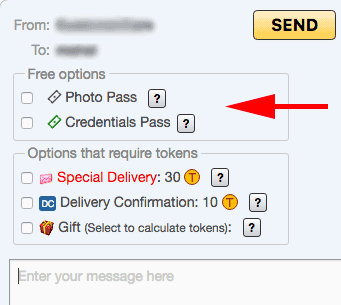
Viewing with a
Recipients who receive your Photo Pass will see (at the top of the message you've sent) a button to view your Private Gallery photos:
Rescind a
You may rescind Photo Passes previously sent to one member or all members, thereby withdrawing access to your Private Gallery:
-
Find the Photo Pass containing message in your Mailbox Sent folder. Messages containing a Photo Pass are tagged with the
icon. - Click the message.
-
Click the Rescind
Photo Pass button below the message (bottom left). You'll then be given a choice of which Photo Passes to rescind - one, all to a user, or all sent to anyone.
Credentials Gallery
Fraud has become too common on the Internet. Many social networking sites have attempted to address this issue in various ways. VeggieConnection.com has addressed member verification via optional* (and free) Credentials. Credentials are documents that verify identity, training, or professional status; see Credential Categories below.
Credential Categories
Credentials fall into one of these categories:
| Credential Type | Document(s) | Minimum Details |
|---|---|---|
| Identity |
• Driver License • Passport/Passport Card • State ID Card • Military ID Card |
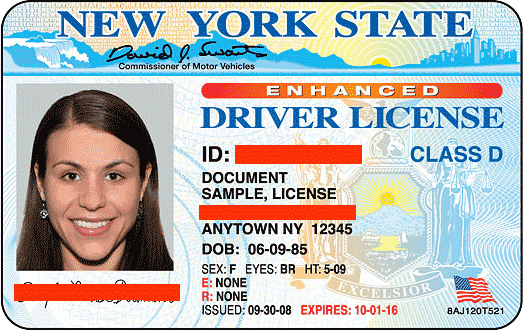
†
Tip: We'd suggest that you redact (block out) the driver license number, social security or similar number, your signature,
birthday day/month (but not year), and street address.
|
| Professional | • Diploma • Certificate of Completion • Student Transcript |
 |
| General | • Business Card • Vaccination Card |
 |
Verification Tags
Members with approved credentials will show these verification icons next to their username:
| Identity Verified | Identity verified by uploading a driver license or similar document | |
| Professional Status Verified | Occupation/training/diplomas verified by uploading one or more official documents (diplomas, etc.) |
Requesting Credentials
In a member's detailed profile, click the button Request Credentials near the bottom of their Personal Information section.Sharing Credentials
- Following an Identity Credential upload, our staff will verify your account. For your privacy, sharing your Identity Credential with fellow members is not required to verify your account.
- As already mentioned above, do not share any credentials containing a drivers license or passport number, your social security or similar number, your signature, your birthday day/month, or your street address.
- Do not share your Identity Credential with anyone you deem suspicious, or if our website has tagged the member with a suspicious or other such alert at the top of their profile.
Viewing Credentials
Recipients who receive your
Primary Photo
Primary Photo Requirements
- A Head-Shot - head, neck, shoulders - of member, no others. Face must fill about ½ - ⅔ the image, as in a drivers license or company ID.
- Face forward, not cut off nor excessively dark/blurry nor obscured. No sunglasses.

- Square or portrait ; not landscape .

Which are suitable as a Primary Photo?
Only the last! Hover over them (or tap them) to see explanation.





Selecting / Creating a Primary Photo
One of two buttons will appear below each thumbnail image:| ☆ Set as Primary Photo | The image is pre-approved as a Primary Photo. Click to select this image as your Primary Photo. |
| Not approved as a Primary Photo (yet). If the face is large enough and unobscurred, click to crop the image to create a head shot. | |
|
|
|
Uploading Photos
VeggieConnection.com photo uploading is similar to the steps you take to e-mail a photo.
On desktops and tablets, you may also click My Photos/Credentials on your home page Quicklinks panel.
| Standard Gallery | default Standard photos are visible to all members |
| Private Gallery | Private photos are viewable by permission only.
You must send a
|
| Credentials Gallery | Credentials are viewable by permission only.
You must send a
|
Photo Operations
| Photo Operations | |
|---|---|
| Calls our photo editor to allow you to trim ("crop") the photo. Handy for making a head shot from an existing photo, or just trimming out extraneous material. | |
| Rotate | Rotate photo. Options are 90° counter-clockwise, 90° clockwise, 180° clockwise. |
| Duplicate | Make a copy of the photo, perhaps because you want to make a cropped version and keep the original. |
| Move | Move the photo to another Gallery. |
| Delete | Deletes the Photo |
| Delete Primary Photo | Click the Delete Primary Photo button, which appears below the Primary Photo,
to delete the Primary Photo.
Note: You need not delete your Primary Photo if you simply wish to replace it with another.
For replacing your Primary Photo, simply select a new gallery photo via either button below any gallery photo: ☆ Set as Primary Photo, or |
Helpful Off-site Utilities
Sometimes you may need to crop (resize) a photo before uploading it because it's too large. Most platforms have built-in tools for doing so. Select your platform:
- PDF to Image converter:
- https://www.freepdfconvert.com/pdf-to-jpg